

Task Planner | Summary, Compliance and closing
Introduction
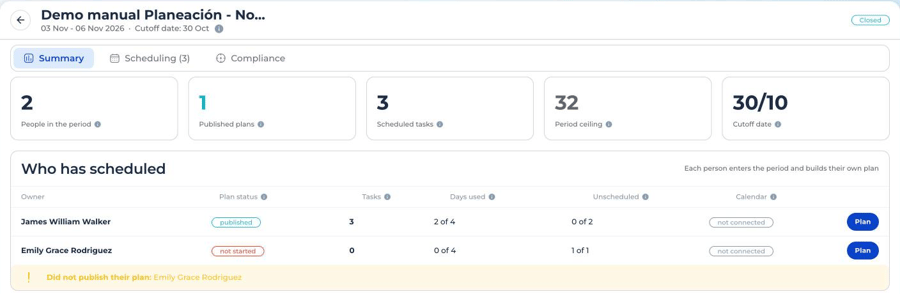
Each period detail has two tabs to follow progress and measure the result: Summary, which shows who has scheduled and how much, and Compliance, which compares what was committed with what was executed. Both follow permissions: with Read only, each person sees their own row; with Edit, the whole team is visible.
Summary: who has scheduled and how much
| Indicator | What it shows |
|---|---|
| People in the period | Assigned owners. |
| Published plans | Owners with at least one published client, even if they have others in draft. |
| Scheduled tasks | Clients scheduled by everyone, published and in draft. |
| Period ceiling | Owners × period days × daily limit. It is a capacity reference, not a target. |
| Plan status | Not started (nothing scheduled), draft (scheduled without publishing) or published (at least one published client). |
| Days used | Days with at least one scheduled client out of the total period days. |
| Unscheduled | Portfolio clients with no scheduling in the period, out of the total portfolio. |
| Calendar | Whether the person connected their Outlook. |
While the period is Open, the Summary shows who has not published yet and reminds the cutoff date. Afterwards it shows who did not publish their plan. Each row has a Plan button to go directly to that person’s plan.
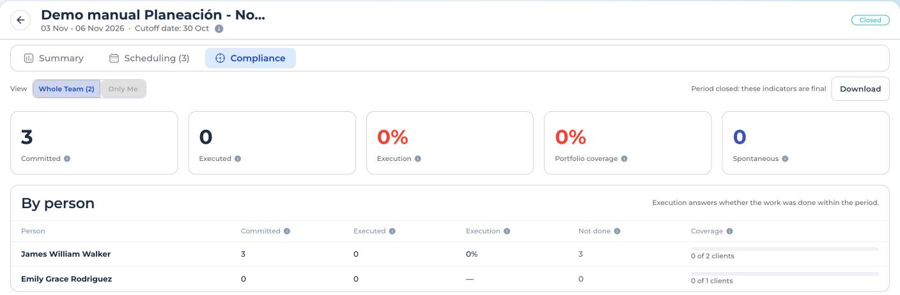
Compliance: committed compared with executed
| Indicator | Definition |
|---|---|
| Committed | Tasks published in the period. Does not include spontaneous ones. |
| Executed | Committed Tasks closed within the period dates, on any day. Tasks executed afterwards do not count in any period. |
| Execution | Executed over committed. It answers whether the work was done. |
| Not done | Committed minus executed. |
| Spontaneous | Tasks executed by the owner within the period that do not come from any plan. Reported separately and not added to execution. |
| Portfolio coverage | Portfolio clients with at least one Task executed by the person in the period, out of the total portfolio. |
With Edit, the Whole team / Only me selector appears at the top. A person with Read only also sees My period plan, day by day.
Reading example
| Committed | Executed | Execution | Not done | Spontaneous | Coverage |
|---|---|---|---|---|---|
| 40 | 34 | 85% | 6 | 5 | 60% (30 of 50) |
An owner published 40 Tasks and executed 34 within the period: 85% execution and 6 not done. They also made 5 visits outside the plan, shown separately. Of the 50 clients in their portfolio, they served 30. The figures are an example.
Download to Excel
With the Export permission, the Download button appears. It generates an Excel file with the same scope the person sees and the columns Owner, Committed, Executed, Execution %, Not done, Spontaneous, Clients served, Portfolio and Coverage %.
Period closing
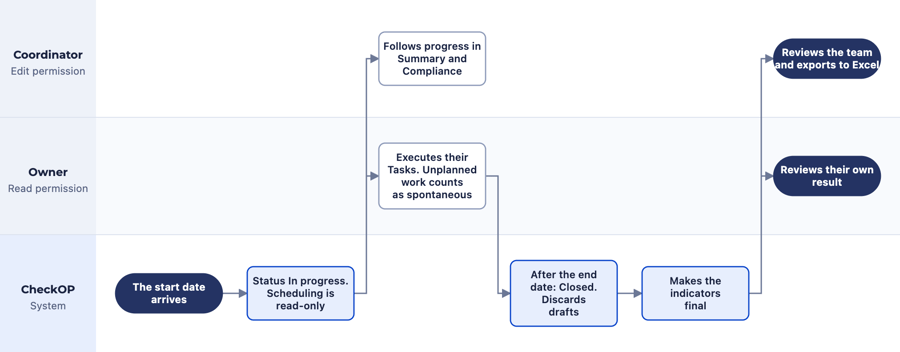
There is nothing to do to close a period. On the start date the period moves to In progress, and the day after the end date it moves to Closed. When it closes:
- Clients left in draft without publishing are discarded.
- Published Tasks are kept, executed or not.
- The period can no longer be edited, not even its name.
- Summary and Compliance become the final result.
During the period the coordinator follows progress; at closing, each person checks their result and the coordinator exports the consolidated report.
Note: the screenshots in this article show the interface in Spanish.