

Supplies
Introduction
The Supplies module allows you to manage the materials, products, and resources that can be used while performing tasks in CheckOP.
Supplies can be organized by category and then used within forms to record the materials used during a field activity.
How Does It Work?
The module is divided into two sections:
- Categories, where you create groups to organize the different types of supplies.
- Supplies, where you record the products or materials that may be used during task execution.
Once created, supplies can be added to forms using the “Supplies” question type, allowing users to select them from the mobile app while performing a task.
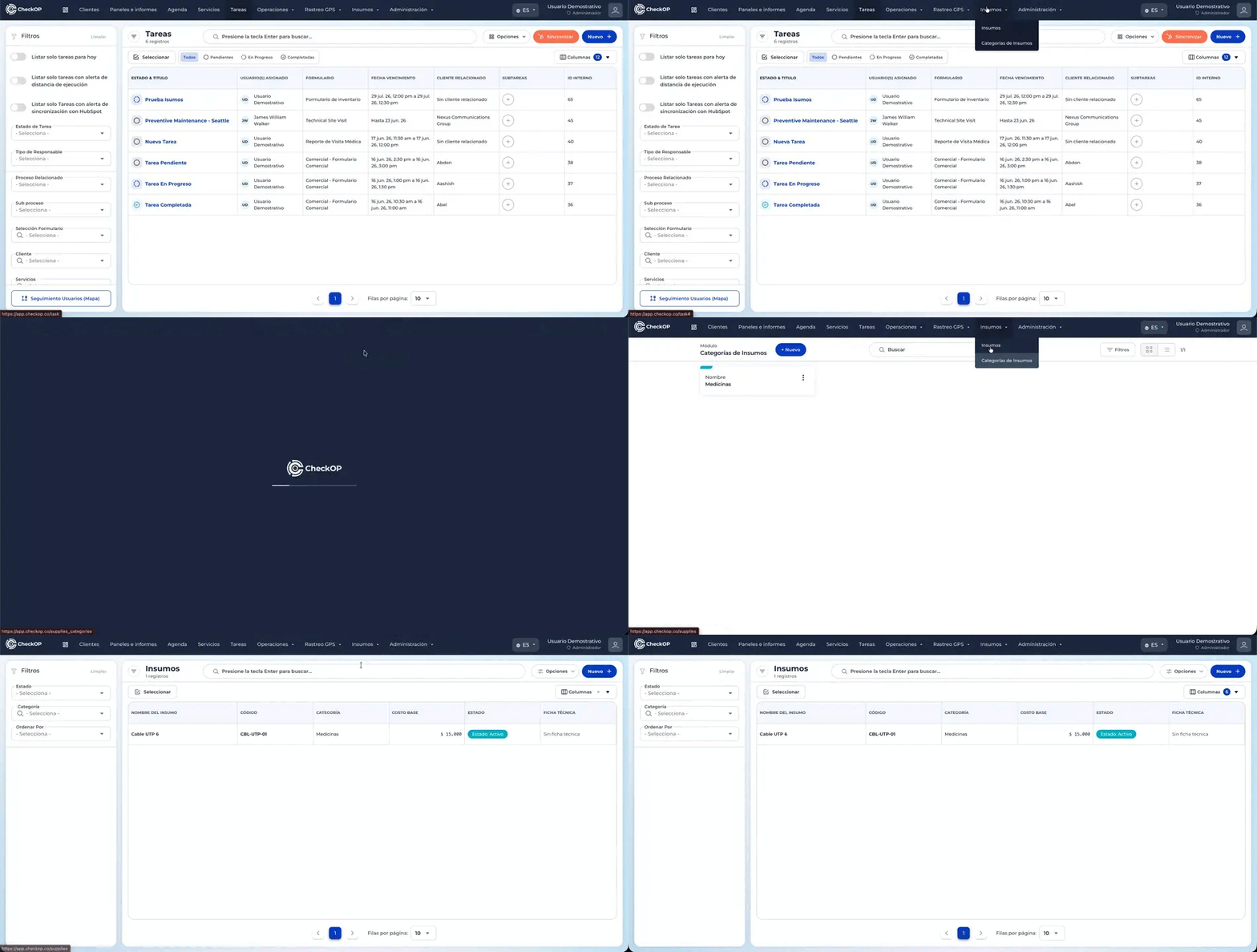
Create a Supplies Category
Categories allow you to organize inputs based on the type of material used in the operation.
Some examples of categories are:
- Tools.
- Spare parts.
- Electrical supplies.
- Safety equipment.
Process
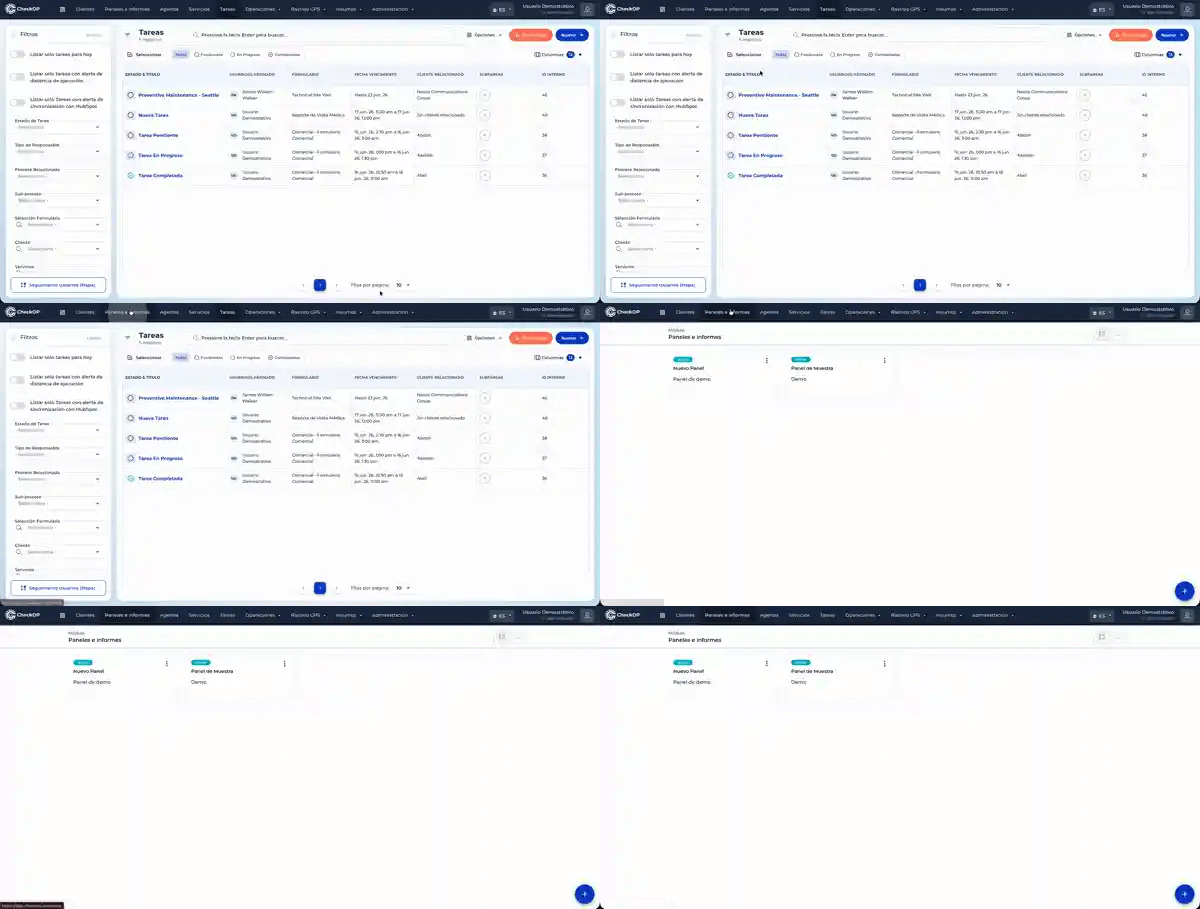
- Go to the Supplies module.
- Select the Categories tab.
- Click New.
- Enter the category name.
- Select its status (Active or Inactive).
- Save the record.
Once created, the category will be available to associate with new supplies.
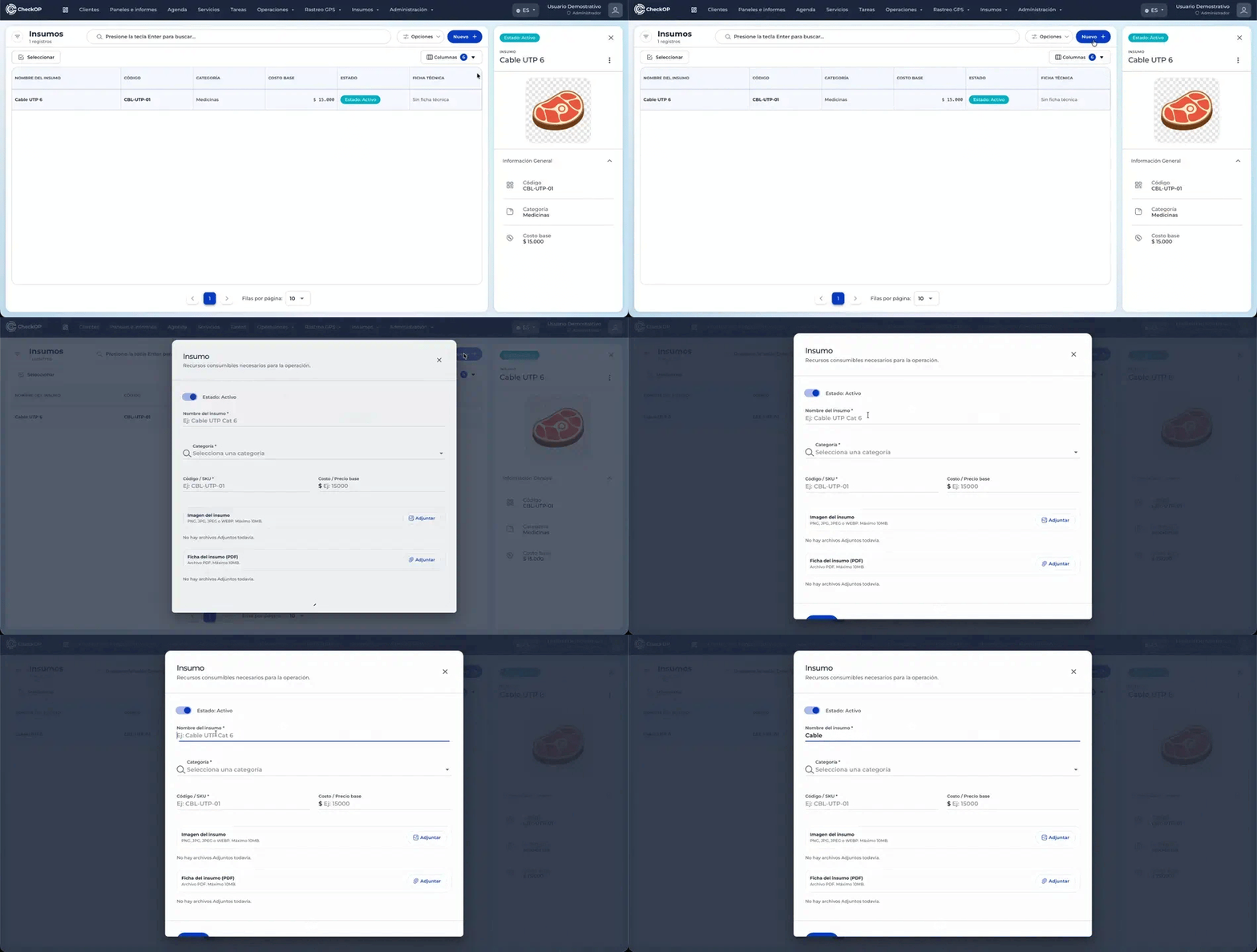

Create an Input
Once the categories have been created, you can enter the materials that will be available for the operation.
Process
- Go to the Supplies tab.
- Click New.
- Fill in the registration information.
Available Fields
- Status.
- Name.
- Category.
- Code or SKU.
- Cost or base price (optional).
- Image of the item (optional).
- Technical data sheet in PDF format (optional).
Finally, click Save.
The item will be available for use in CheckOP forms.
Edit or Delete an Input
Process
- Find the input in the list.
- Select the Actions option.
- You'll see options to Delete or Edit.
- When you select Edit, the input information panel will open.
- Modify the necessary information.
- Save the changes.
The updated information will be immediately available for all forms that use that input.
Desktop
Using Inputs in a Form
-

Inputs can be added to any form using the " Inputs" question type.
Process
- Create or edit a form.
- Add a question of the " Inputs" type.
- Select the supplies category that will be available to the user.
- (Optional) Enable tracking of quantities used.
- Save the changes to the form.
From that point on, users will be able to select the appropriate supplies while performing tasks.
Recording Supplies During a Task
When a user runs a task from the mobile app and reaches a question of the " Supplies" type, they can record the materials used.
Process
- Tap Add.
- Select one or more supplies from the configured category.
- If the question allows you to enter quantities, specify the number of units used.
- Continue filling out the form.
All information will be stored along with the task record.