

Task Planner
Introduction
The Task Planner is the CheckOP module where each owner puts in writing, before a period starts, which clients they will visit and on which day. Once published, that plan becomes regular CheckOP Tasks and, at the end of the period, the module compares it with what was actually executed.
It is not an extra calendar or a second task system: what is planned ends up as a Task that is executed in the APP or the WEB like any other.
| Moment | What is done |
|---|---|
| Before: commit | The coordinator creates the period and defines who takes part. Each owner builds their plan day by day and publishes it. |
| During: execute | The published plan is already Tasks. The owner executes them and, if needed, moves dates within the period with a reason. |
| After: measure | The module calculates what was fulfilled, what was not done, what was spontaneous and how much of the portfolio was served. |
Function Location
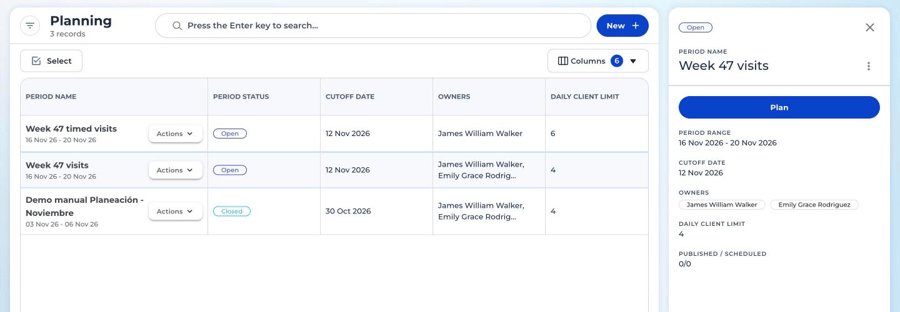
This functionality can be found in: Planning
Note: each account can rename modules. The screenshots in this section show the interface in Spanish, and in some of them the sample account calls the Tasks module «Solicitudes» (Requests). Your account shows the configured name. Clients and users in the screenshots are test data.
WEB and APP
- WEB: periods are created, plans are scheduled and published, and indicators are reviewed.
- APP: the owner sees and executes their period Tasks and can move their date within the period with a reason.
Key concepts
| Concept | What it is |
|---|---|
| Period | Date range with owners, cutoff date and daily client limit. It holds the commitment. |
| Owner | User who takes part in the period and has their own plan in it. |
| Plan | What an owner scheduled in a period: the list of clients per day. |
| Scheduled client | One plan line: a client, a day, a form and, if applicable, sub-process and service. |
| Draft | A scheduled and saved client that is not a Task yet. It does not count in the indicators. |
| Publish | Turn the scheduled clients into CheckOP Tasks. What is published is what is committed. |
| Period Task | A Task created by publishing a plan. It cannot be deleted while the period exists and its date only moves within it. |
| Portfolio | Active clients the owner is responsible for or that are shared with them. |
| Spontaneous visit | A Task executed by the owner within the period that did not come from any plan. |
| Cutoff date | Agreed deadline to have the plan published. It is a reference: it does not block anything. |
Before you start
The Planner relies on data that already exists in CheckOP. Check the following before the first period:
| What | What the Planner uses it for | Required |
|---|---|---|
| Active users | They are the owners added to the period. | Yes |
| Forms | Each scheduled client has a form: it is the one filled in when the Task is executed. | Yes |
| Clients with an owner or shared users | They define each owner’s portfolio, the basis for the Unscheduled and Coverage indicators. | Yes |
| Sub-processes and services | They can be linked to each scheduled client. The form can suggest them. | Optional |
| Outlook calendar sync | If the account has it turned on and the owner connected their calendar, each published Task creates an event and the Planner shows their agenda. | Optional |
| Form integration with HubSpot | If the form integrates with HubSpot, the published Task is synced. | Optional |
For someone to see the module, their profile must have Planning enabled. See Permissions.
How does it work?
The Task Planner follows the path of a period: it is set up, prepared, committed, executed and measured. To learn each step in detail, see: