

Task Planner | Publish the plan
Introduction
Publishing turns an owner’s pending plan clients into CheckOP Tasks. What is published is what is committed, and it is what the module measures at the end of the period. The owner can publish (with Read) or a coordinator can do it for them (with Edit). One owner is published at a time, and only while the period is Open.
Publish step by step
- In the Scheduling tab, click Publish. CheckOP first saves what is on screen.
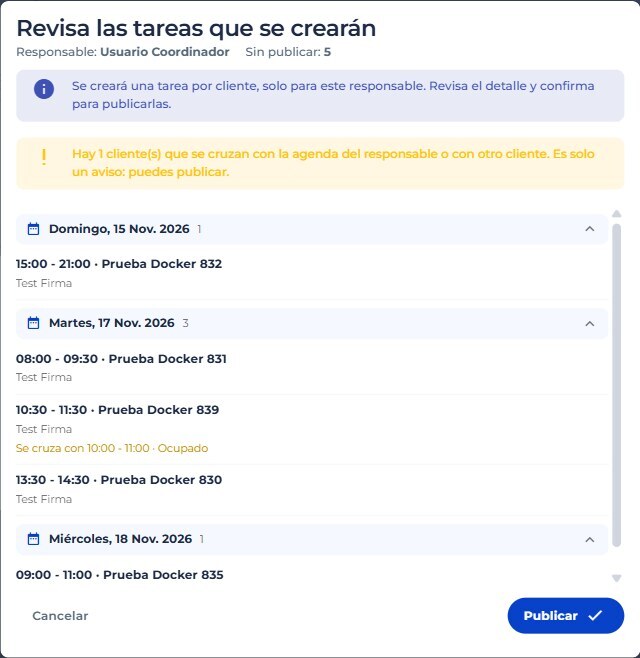
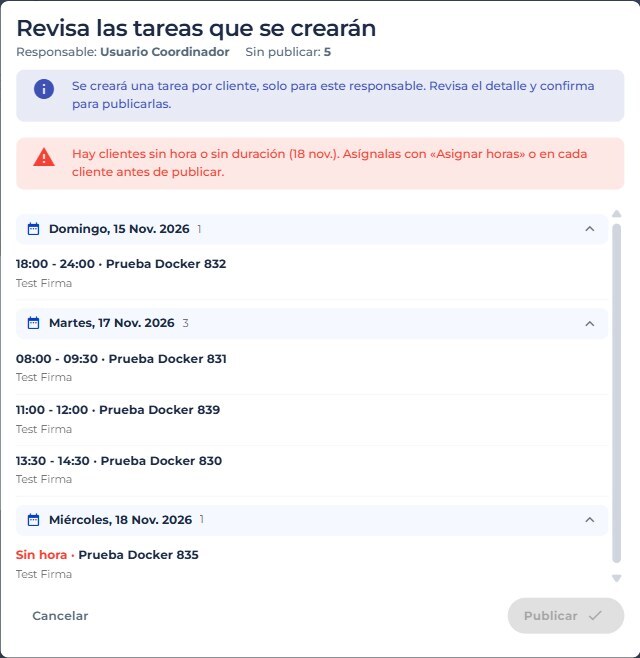
- Check the preview «Review the tasks that will be created». It shows the owner, how many clients are unpublished and groups them by day. Each day expands to show client and form.
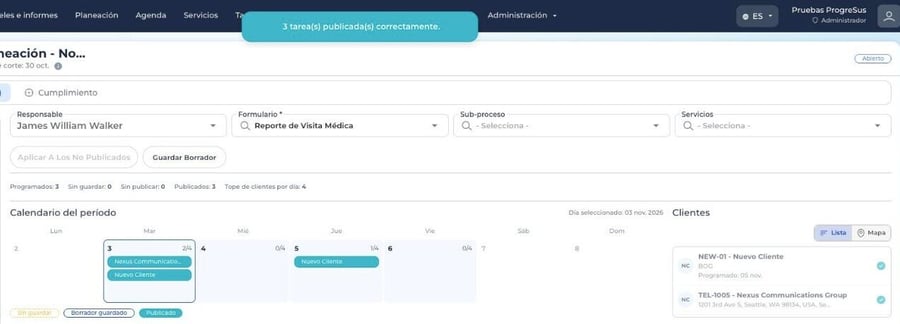
- Confirm with Publish. The message «N task(s) published successfully» appears and those clients turn Published (green).
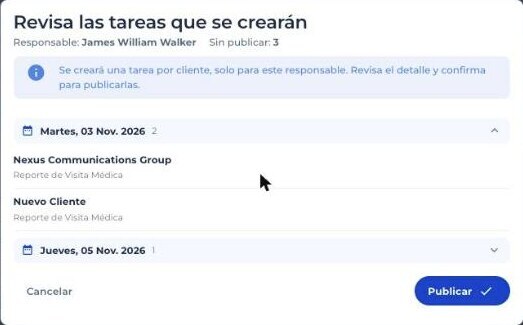

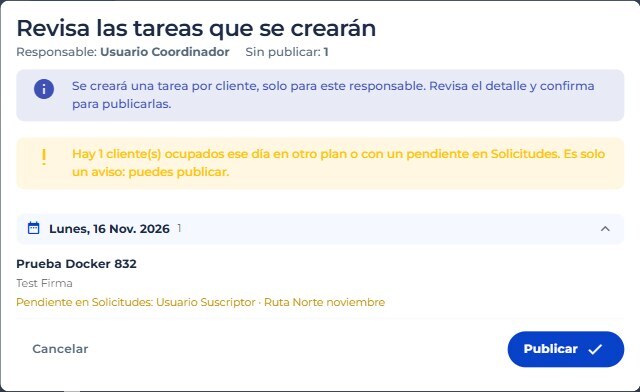
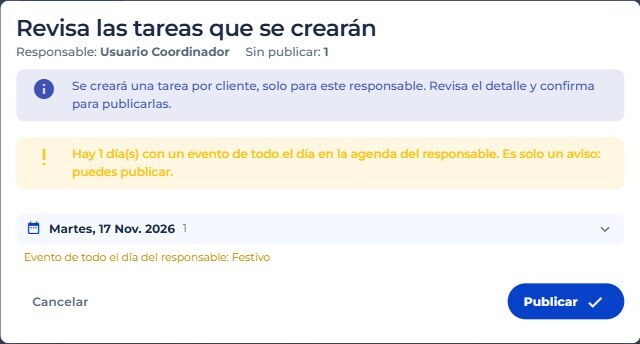
Notices in the preview
| Notice | What happens |
|---|---|
| Busy clients | States how many and shows the details under each one. You can publish. |
| Days with an all-day event | States how many and shows the event under each day. You can publish. |
| Time overlaps (Date and time) | Warns if a client overlaps with the owner’s agenda or with another client. You can publish. |
| Clients without time or duration (Date and time) | Shows the days and keeps Publish disabled until they are complete. |
Which Task is created for each client
| Task data | Value |
|---|---|
| Name | The client name. |
| Type | Based on the period scheduling type: Due date, without time, or Date and time, with the client’s time and duration. |
| Date | The day it was scheduled. |
| Assigned to | The plan owner. |
| Client, form, sub-process and service | Those of the scheduled client. |
| Created by | The person who published. |
When publishing, also:
- The owner receives a single push notification saying the plan was published with N scheduled records.
- If the account syncs with Outlook, an event is created in the owner’s calendar: all-day with due date, or timed with date and time.
- If the form integrates with HubSpot, the Task is synced. See HubSpot.
Publish again
While the period is still Open you can publish again: only new clients are published and what was already published is not duplicated. A published client cannot be removed from the plan, because that Task already exists and is managed in the Tasks module.
Important: anything still in draft when the start date arrives can no longer be published, does not count as committed and is discarded when the period closes. The cutoff date does not block: you can publish after the cutoff while the period is still Open.
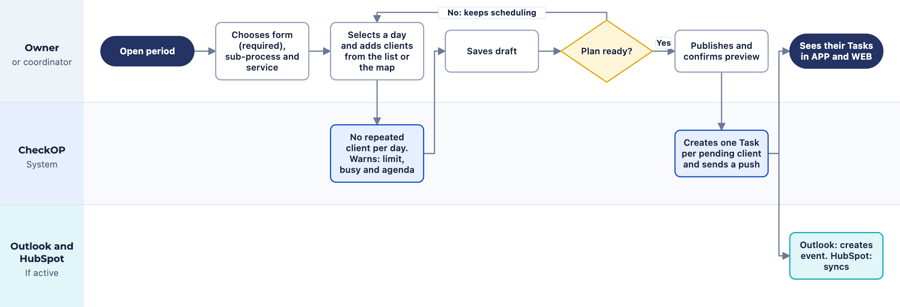
Scheduling and publishing flow
The owner builds the plan and saves it as many times as needed. When publishing, CheckOP creates the Tasks and the active integrations receive each one.
Note: the screenshots in this article show the interface in Spanish.