

Task Planner | Permissions
Introduction
The Task Planner does not have its own roles. What each person can do depends on the Planning module in their profile, which has five options: Read, Create, Edit, Delete and Export.
To review how profiles are created and edited, see the Profiles article.
Enable the module in a profile
Step by step:
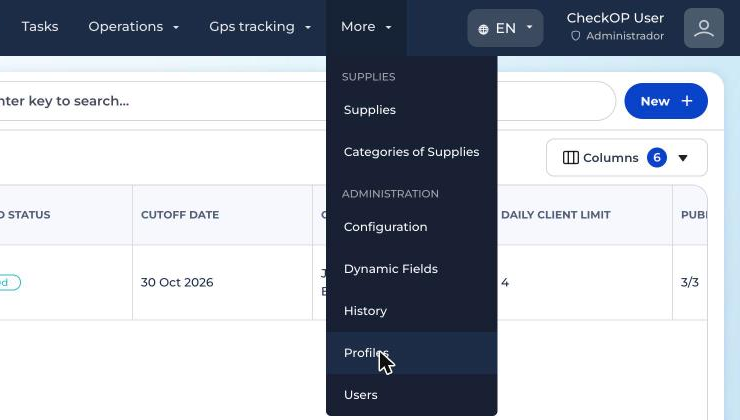
- Open the More menu and, under Administration, choose Profiles. You need permission to manage profiles.
- Open the menu on the profile card and choose Edit. The change applies to every user with that profile.
- In System Modules, find Planning. Turn on the module switch and expand its options with the arrow.
- Turn on the options you need: Allow Read, Allow Create, Allow Edit, Allow Delete and Allow Export. Any option other than Read also turns on Read.
- Click Save. Users will see Planning in the menu the next time they load CheckOP.
What each option allows
| Profile option | What it enables in Planning |
|---|---|
| Allow Read | See Planning in the menu. Enter the periods where the person is an owner (once they are no longer in Draft), schedule, save and publish their own plan, and see their own row in Summary and Compliance. |
| Allow Create | Create new periods. A person who creates without Edit still sees the drafts they created, but cannot edit or open them. |
| Allow Edit | See every period in the account, including drafts. Edit and open periods, schedule and publish any owner’s plan, and see the whole team’s indicators. |
| Allow Delete | Delete periods in any status, one by one or in bulk. |
| Allow Export | Download the Compliance Excel file with the same scope the person sees. |
Read compared with Edit
| Action | Without Planning | Read only | With Edit |
|---|---|---|---|
| See periods in Draft | No | Only the ones they created (requires Create) | All |
| See Open, In progress and Closed periods | No | Only where they are an owner | All in the account |
| Schedule, save and publish plans | No | Only their own plan | Any owner’s plan |
| See Summary and Compliance | No | Only their own row | Whole team, with the Only me option |
| See who is holding a client in another plan | No | Only if the plan is theirs | Yes |
| Receive and execute the published Tasks | Yes, from Tasks | Yes | Yes |
Important: Edit applies to the whole account. Whoever has it sees and operates every period, regardless of work teams. With Read only, a person who is not an owner of a period does not see it.
Profile client restriction
If the profile has the option Restrict Clients Read to Assigned Only turned on, the Scheduling search and the busy client notice only consider the clients of the person scheduling (as owner or shared).
Portfolio indicators are always calculated with each owner’s portfolio, regardless of who is looking.
Suggested profiles
| Example profile | Planning | What they do in the module |
|---|---|---|
| Administrator | All five options | Sets up, creates, opens and deletes periods, and sees everything. |
| Coordinator or planner | Read, Create, Edit and Export | Creates and opens periods, reviews or builds their team’s plans, publishes, measures and exports. |
| Advisor who builds their own plan | Read | Enters the periods where they are an owner, schedules and publishes their plan and checks their result. |
| Technician who only executes | No Planning | A coordinator builds and publishes the plan for them. They only see their Tasks in the APP or the WEB. |
| Analyst or management | Read, Edit and Export | Seeing everyone’s indicators without being an owner requires Edit, because Read only shows the person’s own periods. |
Note: the screenshots in this article show the interface in Spanish.
Go back to the Task Planner main page.