

Task Planner | Execution and date changes
Introduction
Tasks published from a plan are executed like any other CheckOP Task, in the APP or the WEB. In the Tasks module they carry the Period label. Because they come from a plan, they have extra rules so the commitment can be measured.
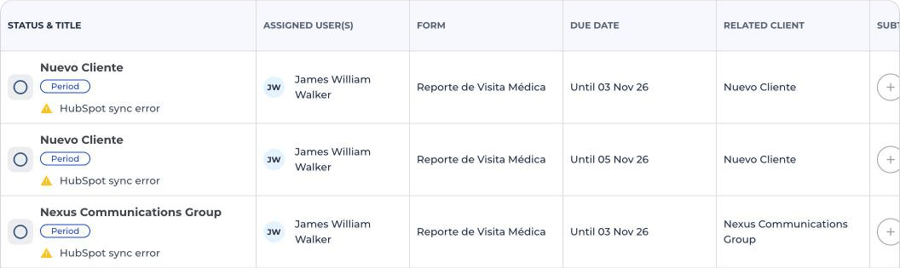
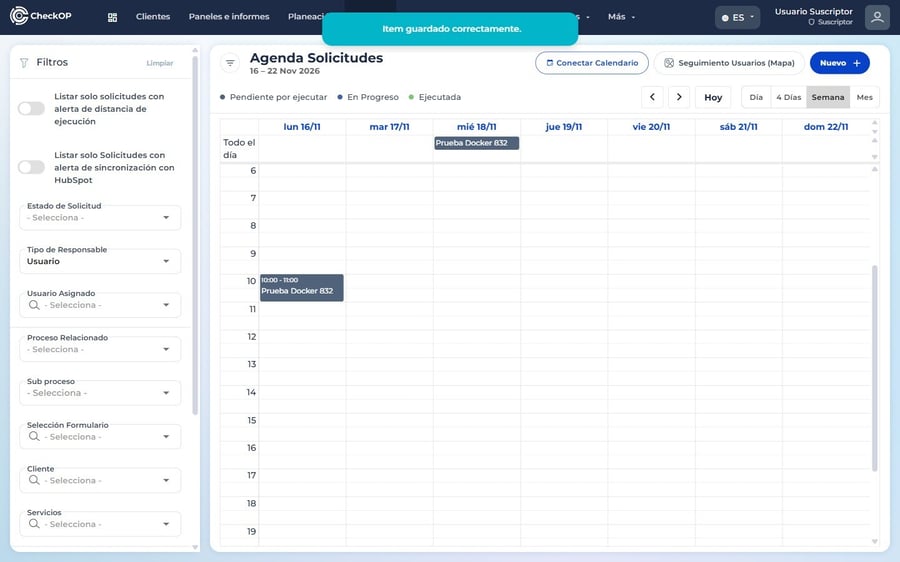
Note: the screenshot shows a HubSpot sync warning because the test account clients do not have a HubSpot ID.
Period Task rules
| Rule | What it means |
|---|---|
| They are not deleted | Neither one by one nor in bulk, while the period exists. If not executed, it stays as not done in the plan. |
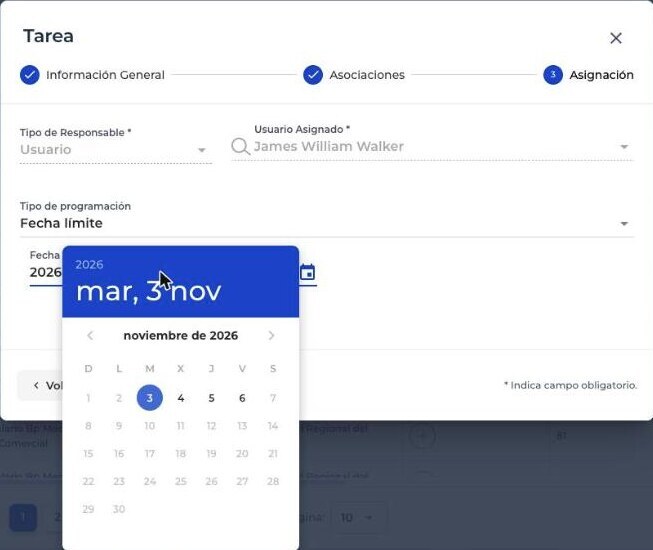
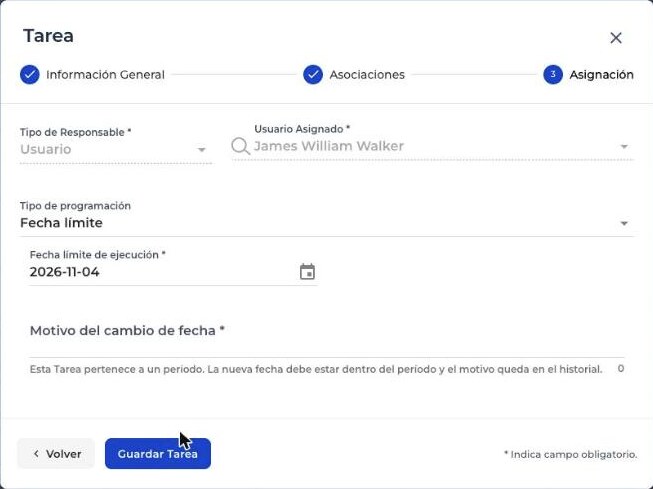
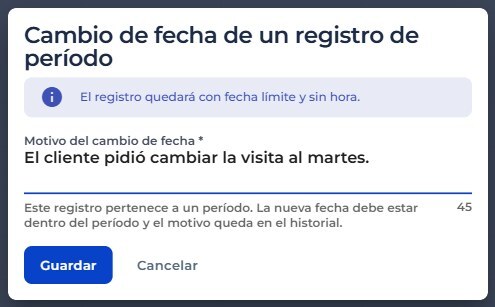
| The date moves within the period | The calendar only offers period days and a reason is required. A note is left in the Task history. |
| The original plan does not change | The committed day remains as a reference. Compliance checks whether the Task was executed within the period. |
Who can edit a period Task follows the usual permissions of the Tasks module. A Task whose execution has started cannot be edited. If the period is deleted, its published Tasks become regular Tasks, without these rules.
Change the date from the Task
Step by step:
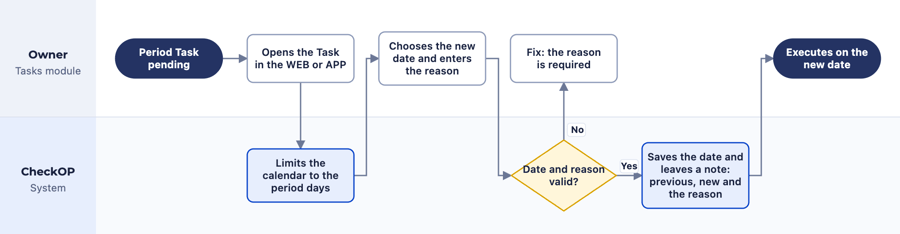
- Open the pending period Task in the WEB or the APP and edit it.
- In the Assignment step, choose the new date. The calendar only enables period days.
- Enter the Reason for the date change. It is required.
- Save. A note is left in the history with the previous date, the new date, the reason and the source.
Move Tasks in the Schedule
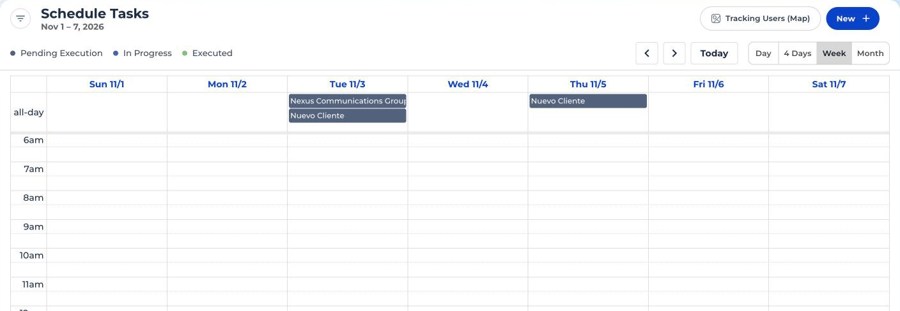
In the WEB Schedule, Week or Day views, you can drag a due date Task to a time and a timed Task to the all-day row. It works with any Task, whether or not it comes from a plan.
| Task | Dropped on | Result |
|---|---|---|
| Due date | A calendar time | Changes to date and time, with a 1 hour duration. You can then stretch it to change the duration. |
| Due date | The All day row of another day | Changes the date. |
| Date and time | Another time | Changes the date and time. |
| Date and time | The All day row | Changes to due date and loses the time. It always asks for confirmation. |
Step by step:
- Go to Schedule and choose the Week or Day view. Due date Tasks are in the all-day row.
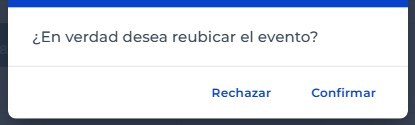
- Drag the Task to the time you want and drop it. The confirmation appears; if there are overlaps with the owner’s other Tasks or their Outlook, it lists them. Overlaps do not prevent the move.
- Click Confirm. The Task now has a time.
- If it is a period Task and the day changes, enter the reason in Date change of a period record. If you drop it outside the period dates, it goes back to its place and a notice shows the allowed range.
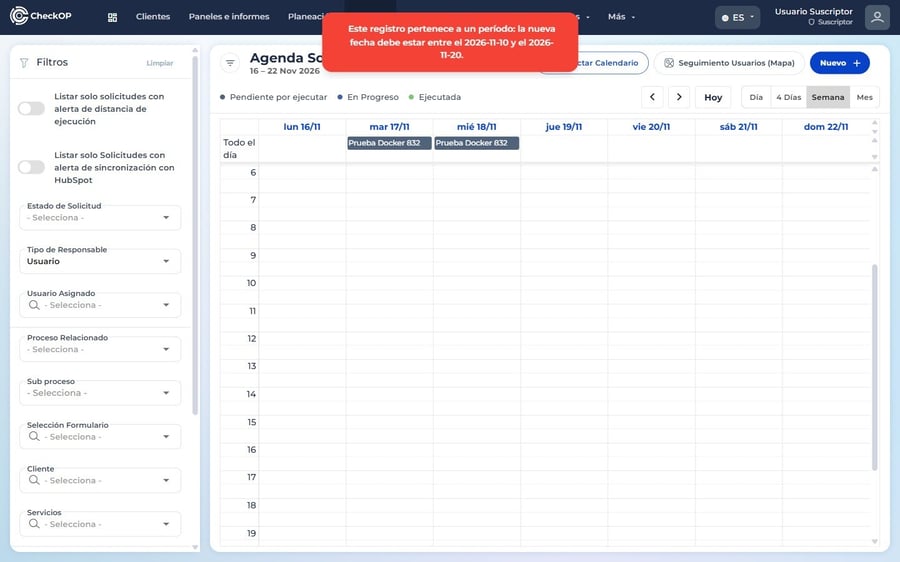
Important: only pending Tasks with edit permission in the Tasks module can be dragged. Executed Tasks and Outlook events stay fixed. In the APP the calendar does not support dragging: Tasks are moved from the form, which also asks for the reason when the day of a timed period Task changes.
See another person’s Outlook in the Schedule
In the Schedule, when you choose Responsible Type: User and an Assigned User, the purple blocks become that user’s Outlook blocks, shown as busy. The legend shows whose calendar it is. It helps you check their availability before moving a Task.
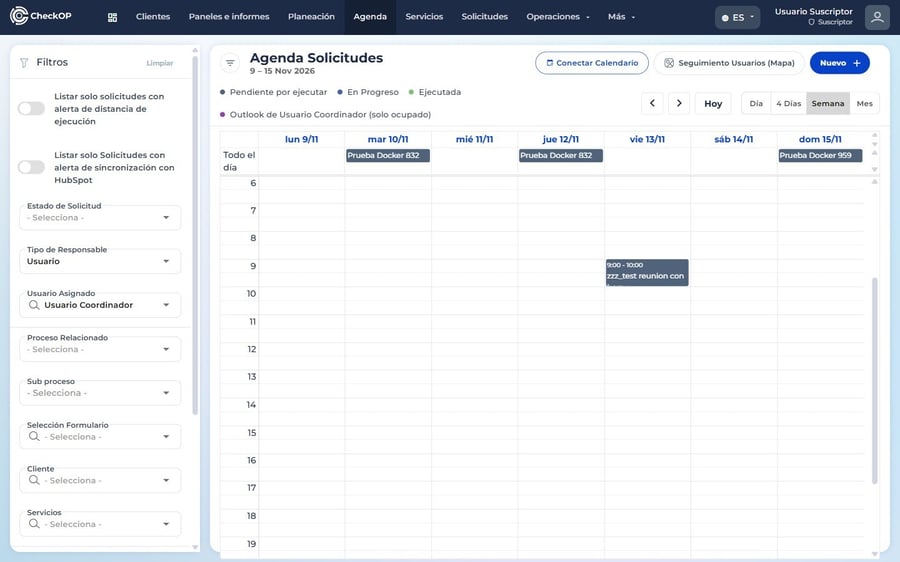
Another person’s Outlook is only shown if you can see their Tasks: you are the account owner or you lead their team. With no filter, or filtering by yourself, you see your own calendar.
Changes coming from Outlook
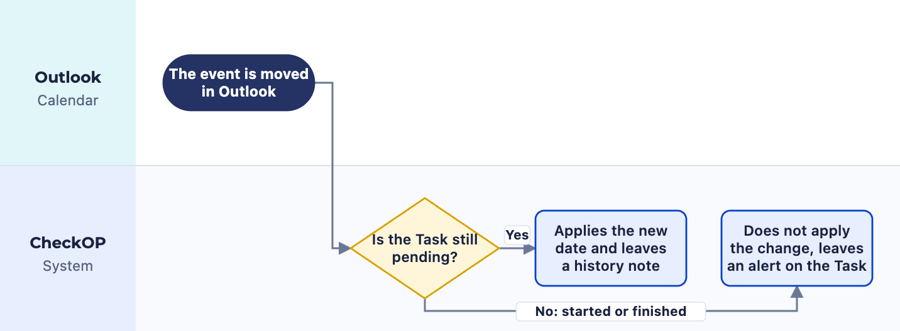
If the owner moves the event in their Outlook, CheckOP applies the change only if the Task is still pending and leaves a note in its history. In that case the new date is kept even if it falls outside the period; if the Task ends up executed outside the period, it counts as not done. If the Task has already started or is completed, the change is not applied and an alert is left on the Task.
Note: the screenshots in this article show the interface in Spanish.